Robotics for Schools: a Competition Club With No Robot to Buy
Starting a robotics club usually means kits, motors, batteries and parts that break. The Smart Home League removes that barrier completely: students write the brain of a vacuum-cleaner robot in Python and run it inside the free league app. Hardware cost: zero. All you need is one ordinary computer per team.
Why this league fits a school robotics class
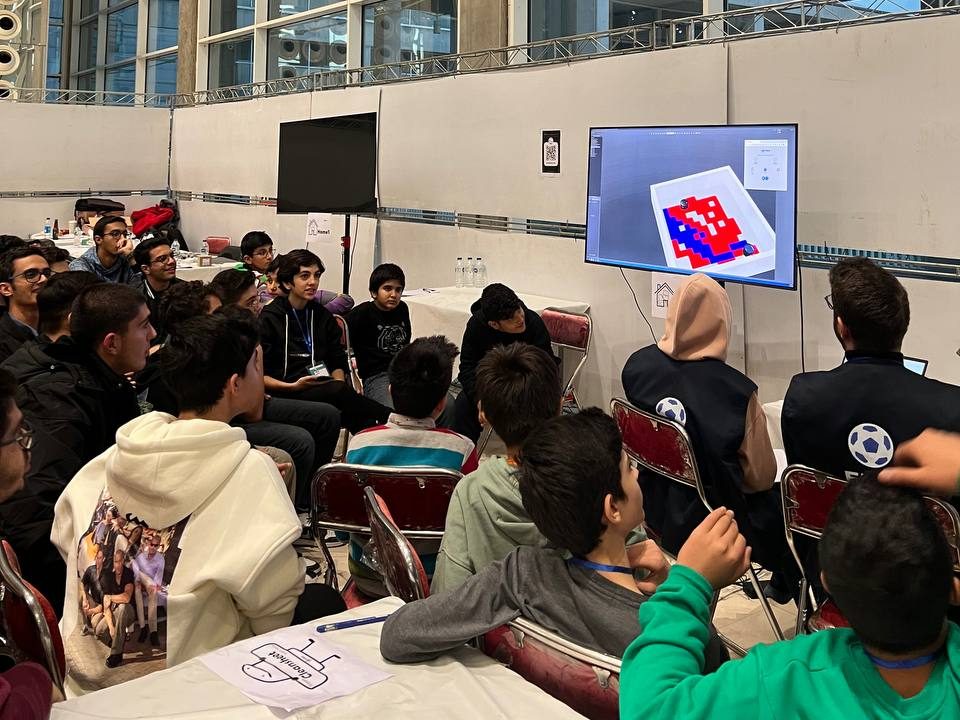
Most schools that want to enter a student robotics competition stall at the same place: the budget. A decent robotics kit is expensive, parts wear out within a few months, and in practice only one or two students ever get their hands on it. The Smart Home League comes at the problem from the other side: the robot, the house, the furniture and the sensors all already exist inside the simulator, and what students build is the robot's intelligence — which is the part that actually teaches something.
- Zero hardware cost: no kits, motors, sensors, batteries or spare parts to buy, and the software is free too.
- One ordinary computer per team: the machines already sitting in your computer lab are enough; no dedicated graphics card is needed.
- Nothing can break: the robot can hit a wall a hundred times and still be fine, so students experiment without fear of damaging anything.
- Everyone works at once: ten computers means ten robots being tested simultaneously, instead of one robot and a queue.
- It continues at home: a student can open the same project on a home laptop, so next week's session starts where they left off rather than from scratch.
- Progress is measurable: the cleaning score is a number. You can put each team's weekly score on the board and watch the curve go up.
If you do not yet have a clear picture of the competition itself, start with the complete vacuum-robot league guide (written in Persian), which covers the rules, the sensors and the scoring in detail.
What students actually learn
This is not an "introduction to robotics" course that ends with a few slides in someone's memory. From week one, students face a genuine problem — how do I completely clean a house I have never seen? — and pick up the skills on the way to solving it:
| Skill | How the club practises it |
|---|---|
| Python programming | Variables, conditions, loops and functions — not on paper, but to make the robot turn and clean |
| Algorithmic thinking | Designing a search strategy: zig-zag coverage, wall following, escaping corners |
| Working with sensors | Reading eight distance sensors and a compass, interpreting noisy numbers and acting on them |
| Debugging | The robot is stuck — why? Print values, isolate the cause, test the hypothesis: the scientific method in practice |
| Teamwork | Splitting the roles of coder, tester and note-taker, and rotating them |
| Time pressure | Every match has a fixed clock, so teams learn which improvement is worth the remaining time |
The thing most teachers notice after a few sessions: a student who avoided while
loops in the formal syllabus goes looking for them the moment they realise that without one,
their robot only moves forward once. The motivation comes from the problem, not from the
grade.
The three divisions and which grades they map to
The official entry rule is age, but for planning a class this rough mapping to school years helps a teacher decide where each group belongs:
| Division | Age | Roughly | Teaching focus |
|---|---|---|---|
| First Step | Under 13 (no minimum age) | Grades 4–6, upper primary | A gentle first contact with code: change the sample, see the result |
| U14 | Under 14 | Grades 7–8, middle school | Writing an independent algorithm with distance sensors and the compass |
| U19 | 14 and above | Grades 9–12, high school | GPS, battery management and wireless charging, route optimisation |
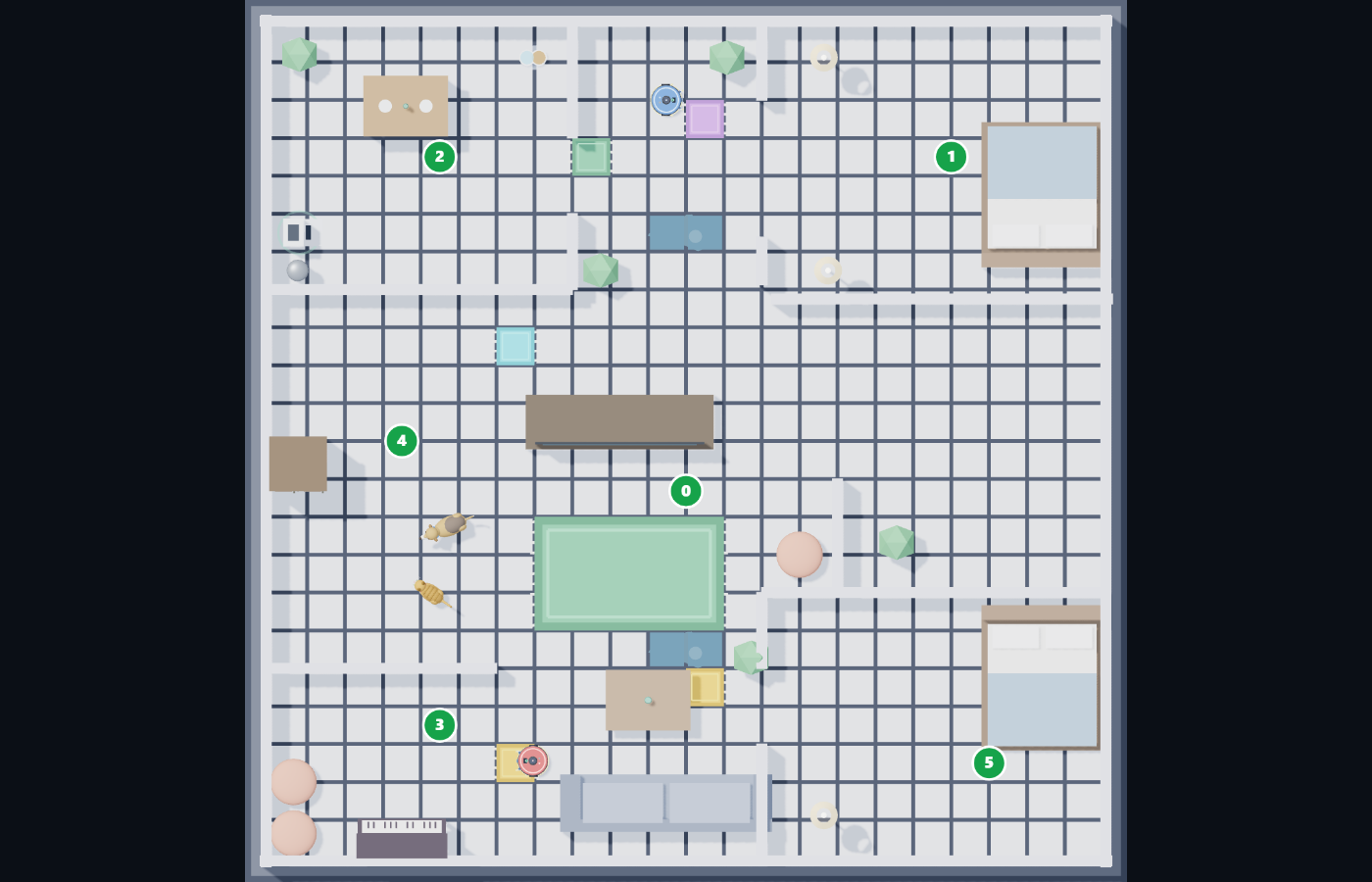
The technical difference is just as clear. In First Step and U14 the robot has eight distance sensors and an inertial unit (IMU) acting as a compass. In U19 it also gets a GPS sensor and a battery with wireless charging pads (the green zones on the map), so the team has to manage energy as well as cleaning. Each round uses a different house map (in U19 the house is fixed and the objects are moved), so an algorithm that has merely memorised one layout will not score.
What a teacher needs before session one
1. The computers
One machine per team (teams of 2–4 work best). Windows or macOS, about 8 GB of RAM and 2 GB of free disk space. A dedicated graphics card is not required, though the simulation runs more smoothly if there is one.
2. Download the installers once, not ten times
Computer-lab internet is usually slow. Download the league app and the project ZIP once on your own machine, put them on a USB stick and carry that around the lab. Every link is collected in the quick-start section of the home page.
3. Python and the helper library
When installing Python, be sure to tick Add Python to PATH — this is the single most common reason a first session turns into "why doesn't it work?". Then, at the command line:
4. Do a dry run yourself
Before the session, walk the whole path once: open the app, pick the division, press Base code to load the starter program and press Start. It takes five minutes and it rescues the entire first lesson.
5. A shared folder per team
Tell each team to keep every week's code in its own folder — week-01,
week-02 and so on. When a new version turns out worse than last week's — and it
will — last week's version is still there.
And the things you do not need to buy: a robotics kit, motors, sensors, batteries, a soldering iron, a physical competition field, spare parts, or an annual consumables budget.
An 8-week robotics club plan
This lesson plan assumes one 90-minute session per week and has been written for teams with no previous experience. If your sessions are shorter, split each week into two. The end goal is concrete: a robot that works on its own, and a mock match the students run themselves.
Week 1 — Install everything and get one robot moving
Download the app, open it and load the base code with the sample controller. Goal: every team sees its own robot driving. No code is written this week — the point is that everyone leaves the room having succeeded at something.
Week 2 — Just enough Python
Read examples/robot_code_u14.py line by line on the projector: variables, the
if statement, the while loop, functions. Then let students change
only numbers — wheel speed, turn duration, sensor threshold.
Goal: the belief that "code isn't scary, it's just a set of instructions".
Week 3 — Make the sensors speak
Print all eight distance-sensor values on every step and drive the robot up to a wall so students watch the numbers fall. Then write the first real decision: "if the front sensor reads a small number, turn". Goal: connecting a sensor value to a behaviour.
Week 4 — The first cleaning algorithm
Build and compare two simple strategies: (a) drive straight and turn a random amount on contact, (b) follow a wall. Each team records the cleaning score of both. Goal: understanding what "a better algorithm" means and how you measure it.
Week 5 — Accurate turns with the IMU compass
Until now teams have guessed a 90° turn as "spin for 0.7 seconds", and the error kept accumulating. Now they read the IMU and keep turning until the target heading is reached. Goal: replacing a guess with a measurement. This is usually the biggest single score jump of the whole course.
Week 6 — Cover the whole house
A zig-zag sweep pattern (parallel passes back and forth), stuck detection and corner escapes. U19 teams add the GPS sensor for exact positioning and battery management with the wireless charging pads in the same session. Goal: going from "wanders randomly" to "sweeps deliberately".
Week 7 — Unseen maps and debugging
Move the furniture, or build a brand-new house with the 3D map editor, and run each team's code on a layout it has never seen. Whatever breaks here is exactly what would have broken in a real match. Goal: an algorithm has to be general, not tuned to a single map.
Week 8 — Run a mock match in your school
Hold a proper competition: the same fixed time for everyone, a map kept secret until the start, judging on cleaning coverage, and a simple certificate for the winners. To make it feel like the real thing, put the competition hub and the awards and results page up on the projector. Goal: experiencing time pressure, and celebrating what they built.
Warming the class up with nothing installed
If you are running an introductory session, or the software is not on the machines yet, the same competition also opens straight in the browser: two robots, the same sensors and the same cleaning logic, with nothing to install. It is ideal for the first twenty minutes of session one, because students immediately grasp what they are being asked to build.
Open the competition in the browser The competition house, division by division
Registering a team and following announcements
Results, tables and awards are published — visit the competition hub and the awards page to see how a real season plays out. It is the easiest way to show students and a head teacher exactly what they would be working towards.
Dates and registration terms for future seasons are announced through these channels:
- League Telegram channel: t.me/firasmarthome — official announcements, dates and registration forms are posted here. If you follow only one link, make it this one.
- Discord: discord.gg/Pf4ND7bbHR — technical discussion and programming questions.
- League site: smarthomeleague.ir — rules, lessons and every download, all current.
- Install guide: how to download and open the app — with screenshots.
A practical suggestion for schools: let the teacher or a parent follow the Telegram channel and relay announcements to the students. That way the children do not need social-media accounts of their own to take part.
Practical notes from experienced coaches
- End every session with a run. Even if the code is unfinished, finish the lesson with a live run; watching the robot move is the fuel for next week.
- Two students, one keyboard. Pair programming — one types, the other reads along and challenges — works remarkably well at this age. Swap roles every twenty minutes.
- Keep a scoreboard. A simple wall chart of each team's weekly score. Friendly rivalry between teams motivates more than any amount of encouragement.
- Celebrate the failures. The robot got stuck? That is not a defeat, it is a clue. A teacher who says "I don't know why either — let's print the values" teaches the most valuable lesson of the course.
- Talk about fair play in week one. The sample code is free to learn from, but the code a team submits must be its own; plagiarism is not accepted and the organisers' decisions are final.
- Keep teams small. More than four students in a team means two spectators. If you have a lot of students, make more teams, not bigger ones.
FAQ for parents and teachers
Does my child need to know programming before joining?
No. The First Step division is meant for people with no experience at all. The sample code works from the first session, so a student sees a robot driving before writing a single line, and only then starts changing numbers and conditions.
What computer do we need? Do we have to buy a robot?
An ordinary laptop or desktop with Windows or macOS is enough: around 8 GB of RAM and 2 GB of free disk space. No dedicated graphics card is required. No robot, kit, motor or battery is purchased — the robot and the house live entirely inside the simulator.
Is this safe for children?
Yes. Everything happens on a computer inside a simulator: no mains electricity, no soldering, no sharp parts, no real batteries. The Telegram and Discord channels are for announcements and technical questions, and a parent or teacher can follow them on the student's behalf.
Is it free?
The technical tools are free: the league app costs nothing and contains everything; the school buys no hardware. Registration terms for each official season are announced by the organisers — follow the Telegram channel and the official site.
Our school has no robotics teacher. Can we still do it?
Yes. Any maths, computing or science teacher can run the club. You do not need prior robotics knowledge; you only need to stay one session ahead of the students. The lessons and the Telegram channel are there for questions.
How long is a session, and how many weeks in total?
One 90-minute session a week, eight weeks in total, is enough for a beginner team to reach a robot that cleans a house and scores in a mock match. The week-by-week lesson plan is on this page.
How big should a team be?
Teams of two to four students work best, and one computer per team is enough: one at the keyboard, the others watching the robot and taking notes, with the roles rotating each session. A lab of ten computers serves about thirty students.
Is it acceptable to use the sample code?
The controllers in the examples folder exist for exactly that: a starting point and teaching material. But the code a team submits for a match must be its own work; copying breaks fair play and the organisers' decisions are final.
Which division should my child enter?
Age decides: First Step for under 13 (with no minimum age), U14 for under 14, and U19 for 14 and above — roughly grades 4–6, grades 7–8, and grades 9–12.
Is a competition running right now?
Results and awards are published on the competition hub and the awards page. Dates for the next season are announced on the Telegram channel — the best move is to start training your team now.
Your school's next step
You do not need to wait for a budget, an approval or a delivery of equipment. A computer room, ten machines and one afternoon a week is enough. Put the tools on a USB stick, book the first session, and let the students watch their first robot start moving — the rest takes care of itself.
Download the tools and start Full league guide Smart Home League home